Quick Answer (TL;DR)
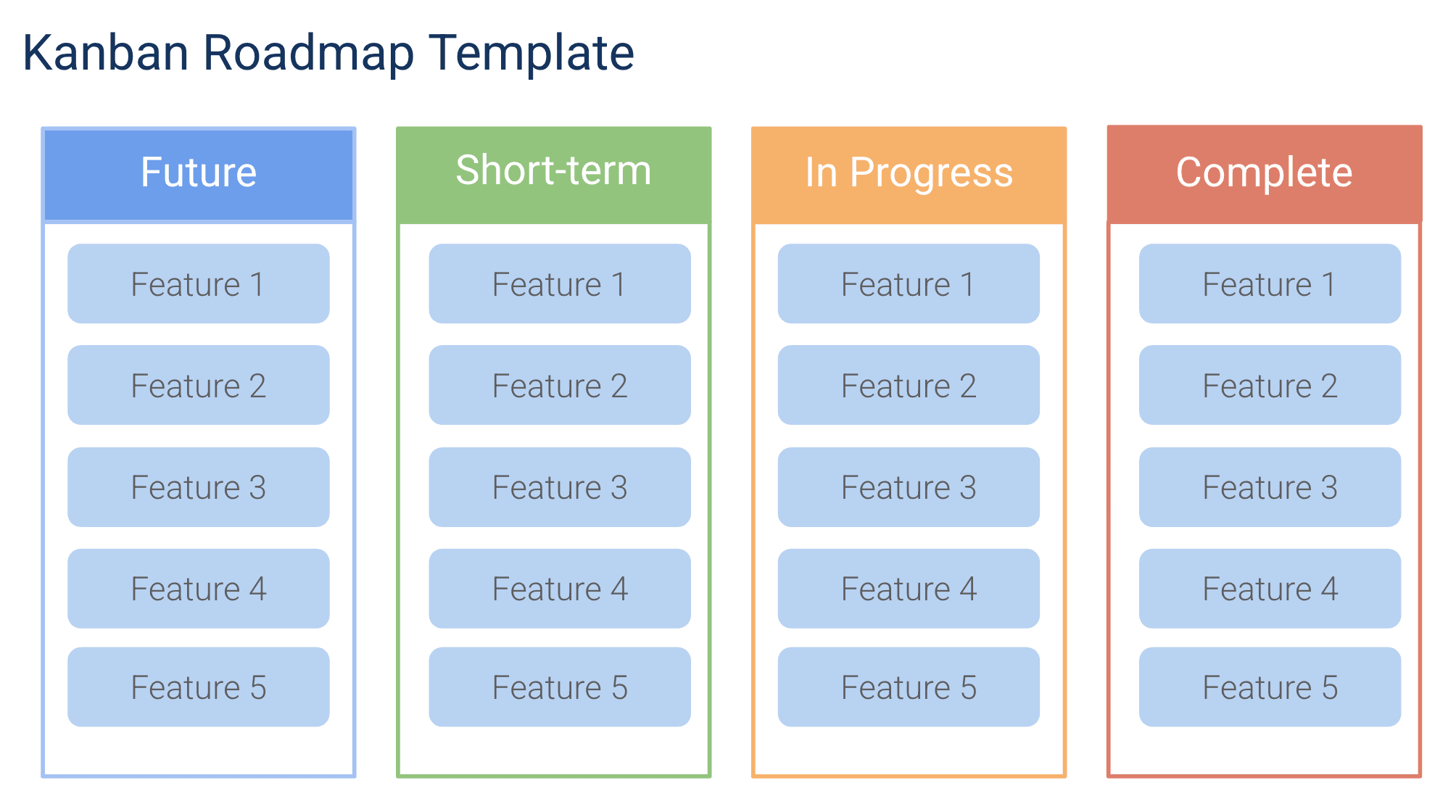
This free Google Slides kanban roadmap template turns your kanban workflow into a presentation-ready visual. Show stakeholders the current state of product work across stages — from backlog through delivery — in a clean, color-coded format designed for meetings and reviews.
What This Template Includes
Why Use Google Slides for Your Kanban Roadmap
Kanban boards are inherently visual, which makes Google Slides a natural presentation format. While your day-to-day kanban tracking might live in Jira, Trello, or a spreadsheet, a Slides version gives you a curated view that tells a story about flow, progress, and priorities.
The presentation format forces you to simplify. Instead of showing every task on the board, you select the items that matter most for your audience — strategic features for leadership, technical initiatives for engineering reviews, or customer-facing improvements for sales updates. This curation is a feature, not a limitation.
Google Slides also lets you annotate the board with context that task-tracking tools cannot capture. Add callout boxes explaining why something is blocked. Include trend arrows showing whether WIP is improving. Add speaker notes with talking points for the presenter. This contextual layer turns a status board into a narrative.
Template Structure
Board Header
The top section establishes context: the product name or team name, the planning period (e.g., “Q1 2026 Status”), and the date the slide was last updated. It also includes a one-line strategic focus statement such as “Focused on self-serve onboarding and enterprise security this quarter.” The header anchors the audience before they start reading individual cards.
Planned Column
The leftmost column contains work that has been committed to but not yet started. Cards are ordered by priority from top to bottom. This column answers the question “what is coming next?” for stakeholders who want to see beyond what is currently in progress. Limiting this column to 5-8 items keeps the slide readable and signals that the team has a manageable, focused pipeline.
In Progress Column
The center-left column shows work that is actively underway. Each card includes a progress indicator (percentage or milestone marker) and the name of the assigned team or individual. This is the column that gets the most attention during stakeholder reviews because it represents live commitments. Keeping this column tight (3-5 items) signals healthy WIP limits and focused execution.
In Review Column
The center-right column captures work that is feature-complete but undergoing QA, stakeholder review, or beta testing before full release. This column is often overlooked in roadmap presentations, but it is critical because it represents work that is nearly done but not yet delivering value. If items linger in this column across multiple updates, it signals a bottleneck in your review or release process.
Shipped Column
The rightmost column celebrates recently completed work. Including a Shipped column in your presentation serves two purposes: it demonstrates delivery momentum to stakeholders, and it gives the team visible recognition for completed work. Limit this column to items shipped since the last presentation to keep it current and relevant.
How to Use This Template
1. Make a copy and customize columns
What to do: Make a copy of the template in Google Slides. Review the default columns (Planned, In Progress, In Review, Shipped) and adjust to match your team’s stages. Add or remove columns by duplicating or deleting the column shapes.
Why it matters: A kanban slide that does not match your team’s actual workflow creates confusion. The column names should reflect the stages your team genuinely uses, not a generic template.
2. Select and add your work items
What to do: From your full kanban board or backlog, select the 12-20 most significant items across all columns. Replace the example cards with your current work. Each card should show the feature or initiative name, the owner, and the priority color. Prioritize items that are visible to users, connected to strategic goals, or frequently asked about by your audience. Do not try to show every task.
Why it matters: A kanban slide with 40 cards is unreadable and defeats the purpose of a presentation format. Curating the items forces you to focus on what the audience actually cares about, which is a different set of items depending on whether you are presenting to executives, engineering peers, or customers.
3. Add priority badges and progress indicators
What to do: Mark each card with a priority badge (P0 = critical, P1 = important, P2 = normal) and add progress indicators to all In Progress items. For items in Planned, indicate estimated start timing. For items in In Review, indicate what review step they are in (QA, beta, stakeholder sign-off). Update the column header numbers to reflect the current item count per stage.
Why it matters: Priority badges prevent the most common stakeholder question (“which of these is most important?”) and progress indicators prevent the second most common question (“when will this be done?”). Answering both questions on the slide itself saves presentation time for strategic discussion.
4. Configure swim lanes and build the metrics slide
What to do: If your audience spans multiple product areas or teams, add horizontal swim lanes to group cards by category. Common configurations: by product area (Core Product, Platform, Mobile), by strategic theme (Growth, Retention, Infrastructure), or by customer segment (SMB, Enterprise, Internal Tools). Update the summary metrics slide with throughput (items completed per week), average cycle time, and any notable trends.
Why it matters: Swim lanes add a second dimension that helps cross-functional audiences find the work most relevant to them. A VP of Sales can immediately scan the Enterprise swim lane without parsing cards from other segments. Metrics give stakeholders confidence that the team is delivering at a healthy pace.
5. Present right-to-left with a time box
What to do: Write speaker notes that walk through the board from right to left: start with Shipped (celebrate wins), then In Review (almost done), then In Progress (current focus), then Planned (what is next). Time-box your walkthrough to 3-5 minutes. Close with your top 1-2 asks: decisions you need from leadership, resources you need, or blockers you need help clearing.
Why it matters: Right-to-left presentation order is counterintuitive but effective. Starting with shipped work establishes credibility and positive momentum before you discuss items that are still in progress or not yet started. A tight, time-boxed presentation followed by a clear ask demonstrates operational maturity and ensures the presentation drives action, not just awareness.
When to Use This Template
The kanban roadmap slide is the ideal format for recurring stakeholder updates — weekly team syncs, biweekly sprint reviews, or monthly leadership meetings — where the audience wants a current snapshot of work status rather than a long-range plan. If your stakeholders are asking “what are you working on right now?” rather than “what is your plan for the next six months?”, the kanban slide is the right tool.
It is particularly effective for teams practicing continuous delivery or operating without fixed release dates. Timeline-based roadmap slides imply date commitments, which can be misleading for teams that ship continuously. The kanban format communicates priority and progress without promising specific dates, reducing the risk of misaligned expectations.
Google Slides makes this template especially useful when presenting to stakeholders who do not have access to your team’s kanban board tool. Executives, sales leaders, and cross-functional partners will read a well-curated slide even if they would never log into Jira. The Slides format also lets you annotate the board with contextual callouts, trend arrows, and speaker notes that raw task boards cannot provide.
This template also works well for engineering-heavy updates where the audience includes technical leaders who understand kanban concepts. Engineering managers, CTOs, and technical program managers will intuitively read the board and understand implications like WIP limits, bottlenecks in the In Review column, and the balance between new feature work and maintenance. For quarterly retrospectives, duplicate the deck each month to create snapshots that tell the story of your team’s workflow improvement over time.